
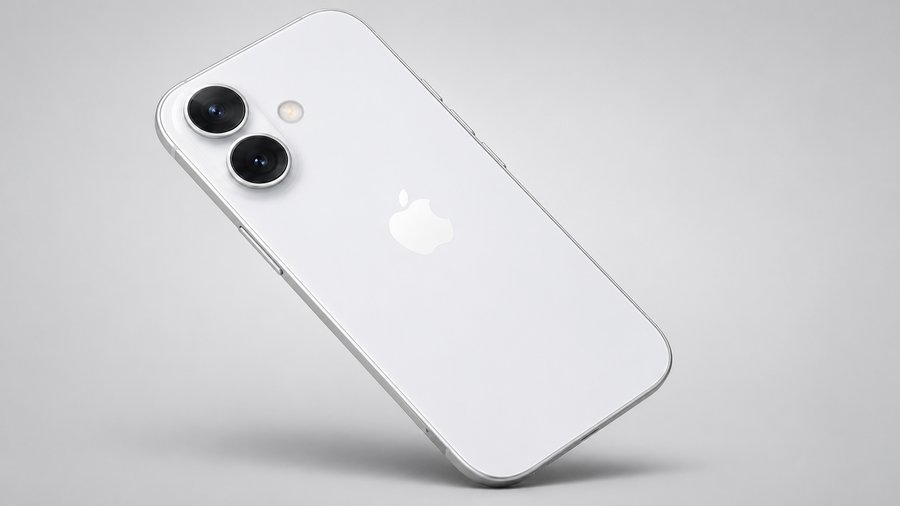
The best iPhone audio recording settings depend on what you’re recording and how you want it to sound. Whether you’re capturing speech, music or video, your choice of audio format can affect the result. In this guide, I share my experience testing mono, stereo and spatial audio on the iPhone 17, starting with a comparison of its built-in microphone recordings.
How to Change Audio Recording Settings
For video recordings, open Settings > Camera > Record Sound and select an available audio format. For Voice Memos, open Settings > Apps > Voice Memos, then use Recording Mode to choose the format and Audio Quality to choose the compression setting. You can also search for Camera or Voice Memos in Settings. Available options depend on your iPhone model and iOS version.
Mono vs Stereo vs Spatial Audio on iPhone 17
Mono records one audio channel, stereo records left and right channels, and spatial audio aims to capture a more immersive sense of space. In my iPhone 17 voice recording test, stereo was my preferred setting. Spatial audio sounded muffled and slightly robotic in my recording, although I couldn’t confirm the cause.
For spoken videos, stereo is the setting I’d start with based on this test. Before recording a full session, capture the same short passage in each mode and compare playback through headphones to find which sounds best for your setup.
Wind Noise Reduction
On supported models, find Wind Noise Reduction under Settings > Camera > Record Sound. It helps reduce wind noise in Stereo or Spatial Audio recordings, making it a useful starting point outdoors. Indoors, try switching it off and compare the sound. Make a short test recording before filming: the setting can reduce wind noise, but it cannot eliminate every gust.
Audio Zoom
Where available, toggle Audio Zoom under Settings > Camera > Record Sound. It adjusts audio capture as you zoom the camera towards your subject. Try it enabled when focusing on a distant speaker, or disabled when you want to retain more of the surrounding atmosphere. Compare a short recording with it on and off to decide which suits your scene.
Voice Memos Audio Quality: Compressed vs Lossless
Go to Settings > Apps > Voice Memos > Audio Quality and choose Compressed or Lossless. Lossless compression preserves the original digital audio data, making it a useful choice for recordings you plan to edit. Compressed uses lossy compression to create smaller files by discarding some audio information considered less noticeable. Choose it when saving storage matters more. This setting is separate from Recording Mode, which controls Mono, Stereo or Spatial Audio on supported models.